How to Use

Install & Run SilentAssist AI

Set up the desktop app on macOS or Windows in a couple of minutes — then control everything with a few keyboard shortcuts.

macOS 13+ · Windows 10/11 · Free to install

Installation

Pick your operating system.

  1. Step 1

    Download for macOS

    Grab the .dmg installer (works on Apple Silicon and Intel Macs).

  2. Step 2

    Drag to Applications

    Open the .dmg and drag SilentAssist AI into your Applications folder.

  3. Step 3

    Launch the app

    Open it from Applications. The window is frameless and floats above everything.

  4. Step 4

    Grant recording permission

    On first use, macOS asks for Screen & System Audio Recording. Allow it, then quit (⌘Q) and reopen once.

macOS only

Open It the First Time

SilentAssist AI isn't signed with an Apple Developer ID yet, so macOS blocks the very first launch. Here's how to open it — you only do this once.

“Not Opened”? Click Done

macOS shows this the first time you open the app. Click Done to dismiss it — not Move to Trash (that deletes the app).
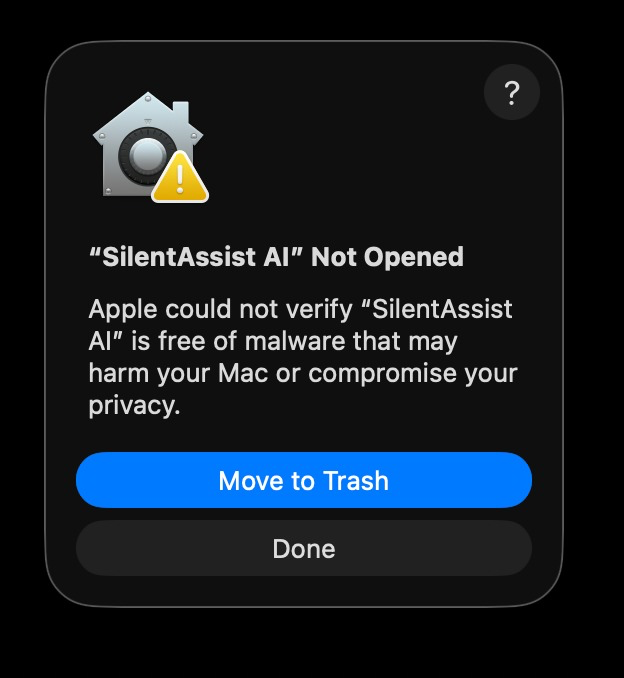
macOS Gatekeeper dialog saying SilentAssist AI was not opened
1
2
1Click Done — Press “Done” to dismiss this — it does NOT delete the app.
2Not this — Never click “Move to Trash” — that deletes the app.

Open Anyway to install

Open System Settings → Privacy & Security, scroll down to Security, and click Open Anyway.
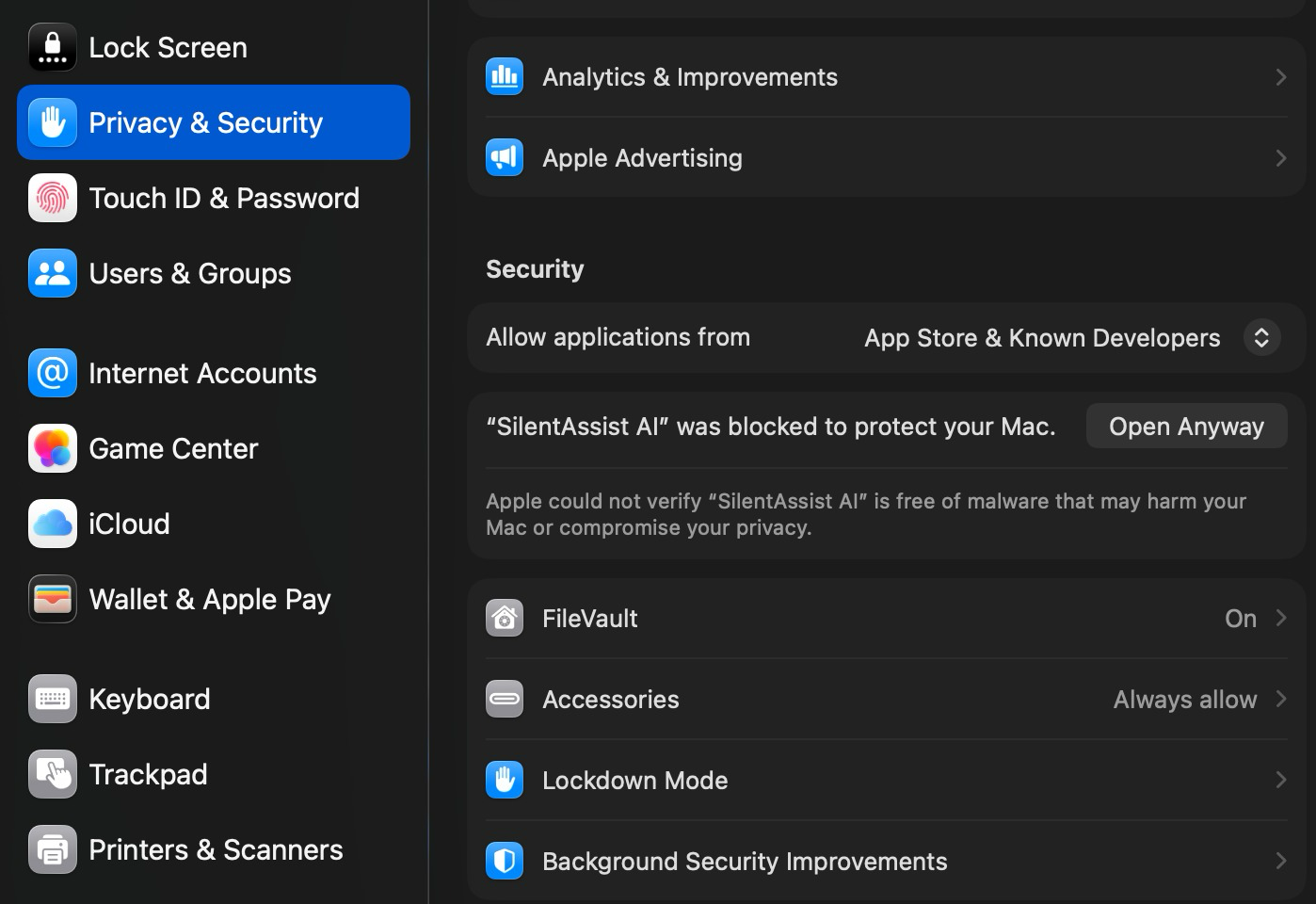
macOS Privacy & Security settings with the Open Anyway button for SilentAssist AI
1
2
1Privacy & Security — Open System Settings → Privacy & Security and scroll down to the Security section.
2Open Anyway — Click “Open Anyway”, then confirm — SilentAssist AI will launch normally from now on.
macOS only

One-Time Permission Setup

macOS asks for permission the first time the app captures your screen or meeting audio. You only do this once.

Screen & System Audio Recording

Powers two features: capturing a screenshot for context, and listening to meeting / call audio (the other person's voice), not just your microphone.

  1. Open System Settings → Privacy & Security → Screen & System Audio Recording
  2. Toggle SilentAssist AI on
  3. Quit (⌘ Q) and reopen the app

Invisible on screen shares

SilentAssist hides itself from screen sharing and recording on Zoom, Google Meet, and Teams — it stays on your screen, but others on the call can't see it.

Use ⌘+⇧+Space to instantly hide or show the window whenever you need to.

Screen & System Audio Recording

Powers screenshots and meeting-audio capture. Turn SilentAssist AI on in both lists.
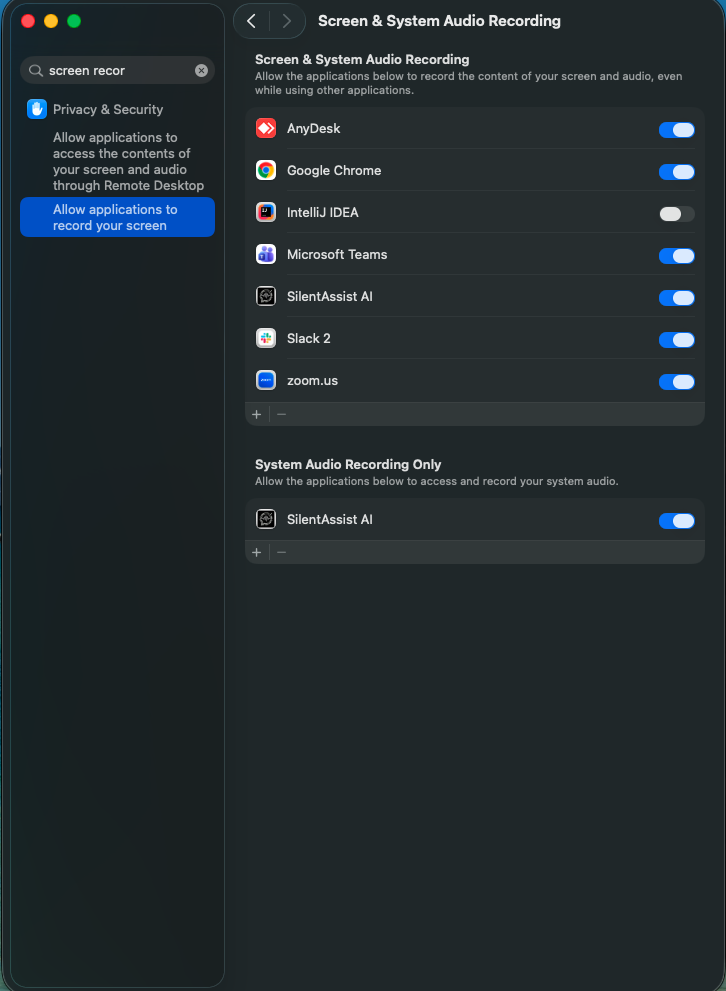
macOS Screen & System Audio Recording settings with SilentAssist AI enabled
1
2
3
1This section — Click “Allow applications to record your screen” in the sidebar.
2Turn ON — Enable SilentAssist AI under “Screen & System Audio Recording”.
3Turn ON — Also enable SilentAssist AI under “System Audio Recording Only”.

Microphone

Lets the app hear your voice when you speak. Turn SilentAssist AI on for every row.
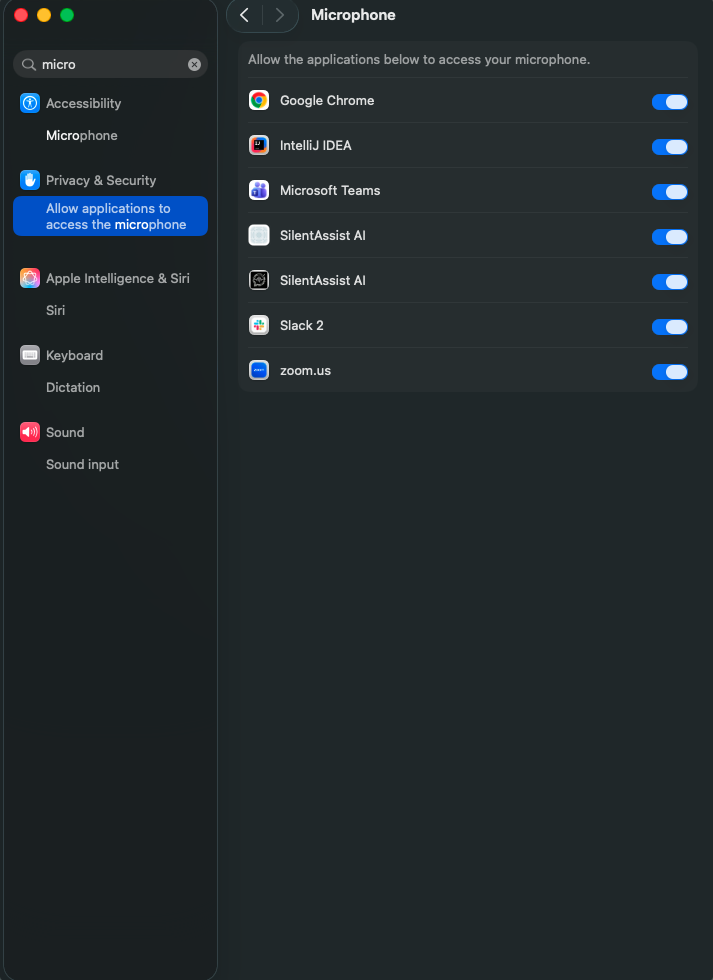
macOS Microphone settings with SilentAssist AI enabled
1
2
3
1This section — Click “Allow applications to access the microphone” in the sidebar.
2Turn ON — Enable the first SilentAssist AI row.
3Turn ON — Enable the second SilentAssist AI row too.
A tour of the app

Get to Know the Window

The app is a small floating window with no title bar. Here's every control, labelled.

1. Unlock with your API token
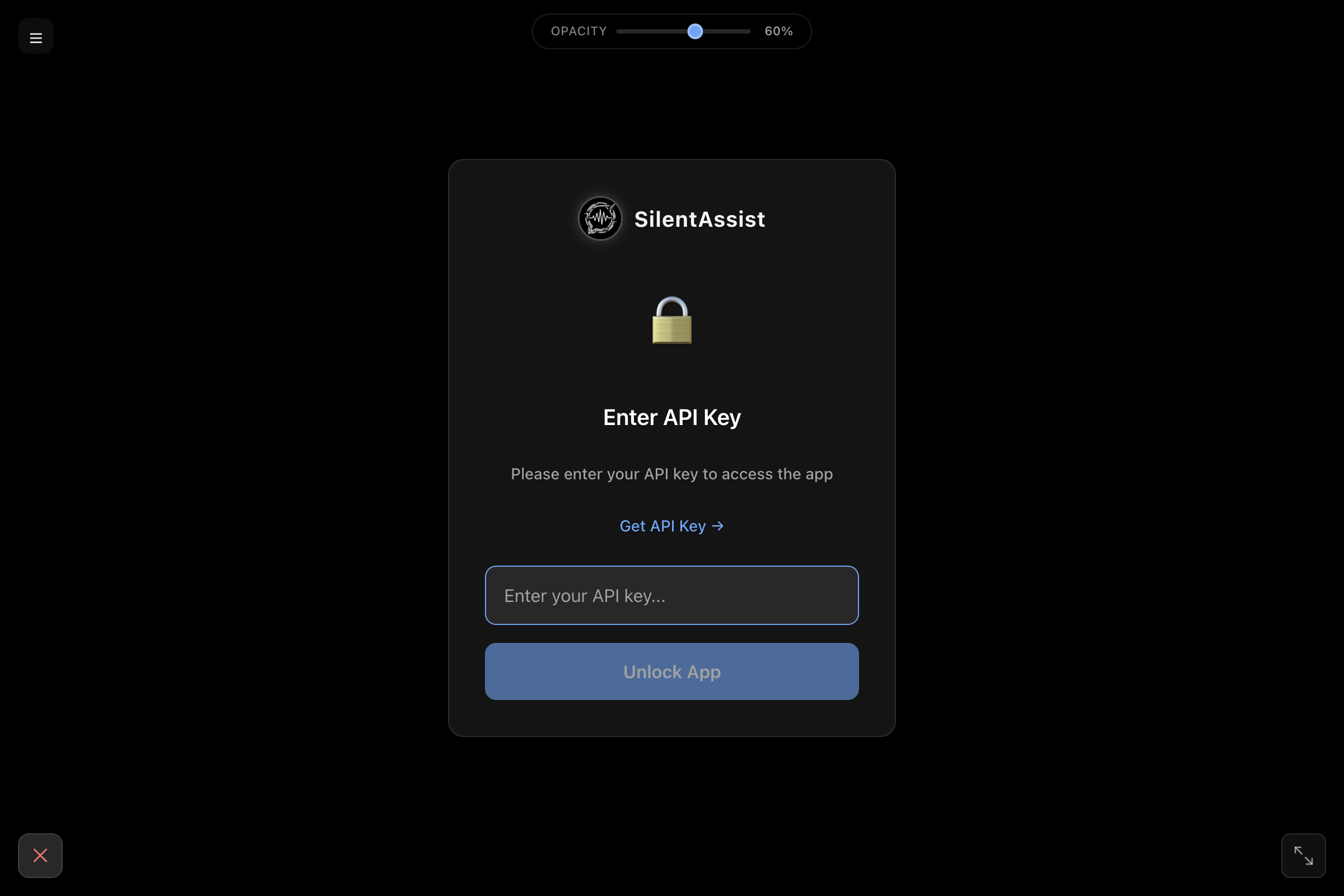
SilentAssist AI unlock screen with labelled controls
1
2
3
4
5
6
7
1Drag — Drag this handle to move the window anywhere.
2Opacity — Slide to make the window more or less transparent.
3Get token — Opens your dashboard to generate an API token.
4Paste key — Paste your sa_ API token here.
5Unlock — Unlocks the app for your session.
6Quit — Closes the app completely.
7Resize — Drag this corner to resize the window.

2. The main window

SilentAssist AI main chat window with labelled controls
1
2
3
4
5
6
7
8
9
1Drag — Drag this handle to move the window.
2Opacity — Adjust window transparency on the fly.
3Hide / show — Press ⌘⇧Space to instantly hide or show the window.
4Send — Send your typed message to the assistant.
5Quit — Close the app.
6Listen — Capture the meeting / call audio (not your mic).
7Screenshot — Capture your screen so the AI has visual context.
8New chat — Start a fresh conversation.
9Resize — Drag this corner to resize the window.
Shortcuts

Keyboard Shortcuts

These work globally — even when the app is hidden.

Show / hide the window
macOS⌘+⇧+Space
WindowsCtrl+Shift+Space
Scroll answer up
macOS⌘+⇧+↑
WindowsCtrl+Shift+↑
Scroll answer down
macOS⌘+⇧+↓
WindowsCtrl+Shift+↓
Reload the app
macOS⌘+R
WindowsCtrl+R
Quit the app
macOS⌘+Q
WindowsAlt+F4

Ready to go?

Generate a token from your dashboard, paste it into the app, and start your session.